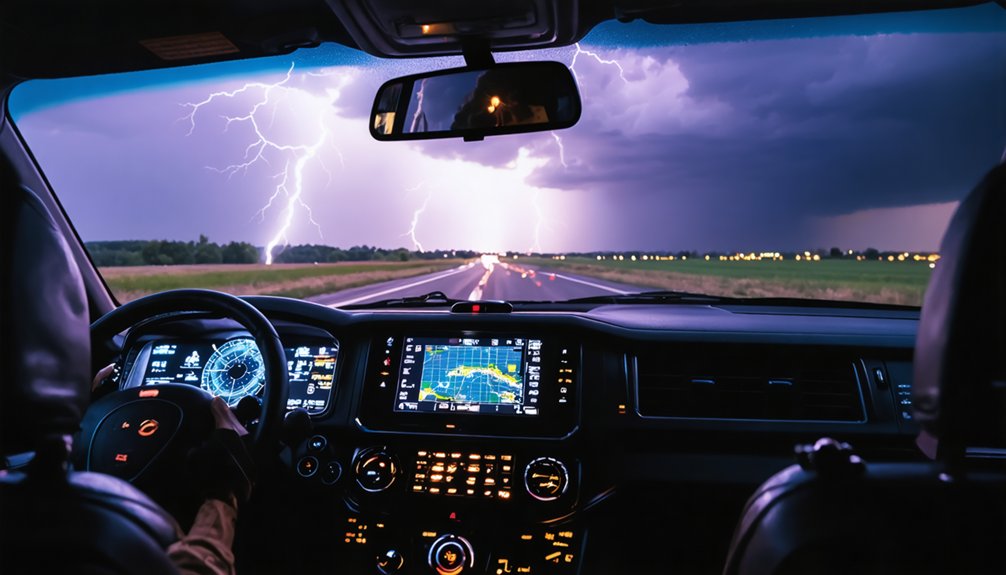
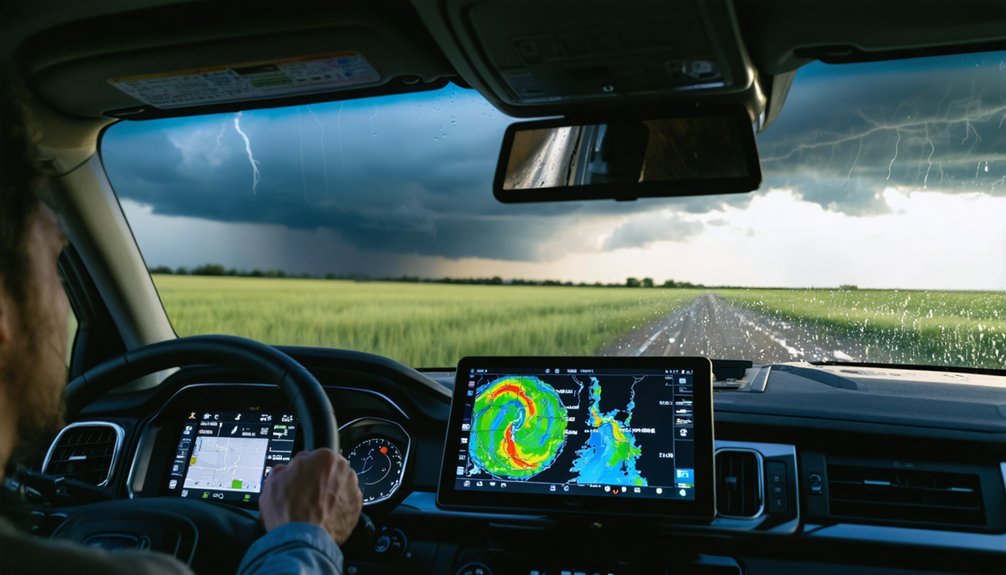
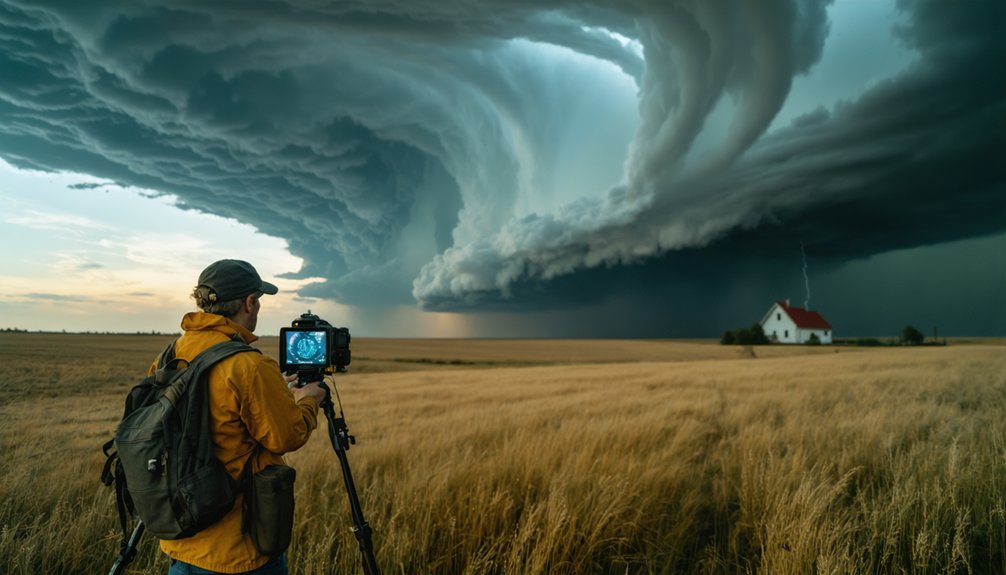
To use Spotter Network for storm chasing, you’ll download the app, authenticate with your ID number, and configure location permissions to “Always” with precise positioning enabled. Set battery optimization to “Unrestricted” so your GPS coordinates transmit every two minutes to meteorologists and fellow chasers. You’ll need to pass mandatory storm identification testing before submitting reports, which must document tornadoes, hail, damaging winds, or flooding within 20 minutes of observation. The platform’s integration with real-time radar data and verified spotter positions provides critical situational awareness during active operations.
Key Takeaways
- Download the Spotter Network client app, enter your ID number, and enable “Always” location sharing with precise positioning.
- Complete mandatory online training and pass the Spotter Network examination to gain unrestricted severe weather reporting capabilities.
- Configure battery settings to “Unrestricted” to ensure continuous two-minute GPS position updates during active storm chasing operations.
- Submit standardized reports within 20 minutes documenting tornadoes, hail, winds ≥50 mph, or flooding with precise locations and timestamps.
- Access real-time GPS positions of active spotters and concurrent storm reports for enhanced situational awareness during chase operations.
What Is Spotter Network and Why Storm Chasers Use It
When severe weather threatens populated areas, the Spotter Network serves as a GPS-based coordination platform that connects storm chasers, trained spotters, and meteorological decision-makers through real-time position tracking and standardized severe weather reporting.
You’ll access automated position broadcasting through mobile apps integrated with professional tools like RadarScope and GRLevelX, enabling field coordination with officials from the National Weather Service and emergency management agencies. The system requires mandatory storm knowledge testing to guarantee storm reporting accuracy across its network.
Since becoming operational in 2006, you’ve gained the ability to submit critical observations—wall clouds, hail cores, tornado touchdowns—directly through API-connected applications. The hybrid infrastructure combines locally installed software with web-based GIS mapping, giving you selective control over contact distribution while maintaining quality-controlled reports for protection of life and property.
Getting Started: Download and Initial Setup
You’ll need to download the SpotterNetwork client from your device’s app store—the SN Windows application for desktop systems, RadarScope for iOS devices, or Radar Alive!/SPOTTERON for Android platforms.
After installation, launch the application and enter your SN ID number in the designated credentials field to authenticate your account.
Configure your location sharing parameters within the app settings to enable real-time position broadcasts to the network’s tracking infrastructure.
Download From App Stores
Before deploying for storm intercepts, you must acquire the Spotter Location app through official distribution channels. Navigate to Apple App Store or Google Play Store and search “Spotter Location” by Downdraft Technologies. The iOS version requires 16.0 or later, while Android supports multiple versions including Oreo and Pie, ensuring geographic compatibility across diverse deployment regions.
Purchase the app for $1.99 USD and initiate installation. The 1.0 MB footprint minimizes storage constraints on field devices. Upon completion, configure location verification settings to “Always” for continuous background operation. Set update intervals from 2 minutes based on operational requirements.
The app establishes encrypted API connection to Spotter Network infrastructure, enabling real-time position broadcasting during active chase operations. Verify stable internet connectivity before field deployment.
Enter Application ID Credentials
After installation completes, launch the application to access the credential entry interface. You’ll need your registered username and password entry to proceed with authentication. The system administrator may enable two-factor authentication (2FA) for enhanced security protocols.
When 2FA is activated, your first login requires additional verification steps:
- Scan the displayed QR code using your preferred authenticator application
- Generate a time-based verification code from the authenticator
- Enter the generated code to complete the authentication sequence
- Confirm successful login verification before accessing core functions
The application won’t grant access until you’ve completed all authentication requirements. If 2FA isn’t enabled, standard credential verification allows immediate entry. You’ll maintain autonomous control over your security settings throughout your operational period.
Configure Location Sharing Settings
Why does accurate location transmission matter for storm spotting operations? You’ll need continuous GPS data flowing to the Spotter Network API for RadarScope integration and real-time coordination with meteorologists tracking severe weather.
iOS Configuration
Navigate to Settings after entering your credentials. Set location sharing to “Always” and enable precise location. This prevents upload failures and maintains background operation during active chases.
Android Setup
Access Settings > Apps > Spotter Location. Configure three critical parameters: Location permissions to “Allow all the time” with precise location enabled, Notifications toggled on, and Battery set to “Unrestricted.” These settings eliminate background restrictions causing app closure.
Troubleshooting connection issues requires verifying two-minute update intervals display correctly. When adjusting location settings properly, you’ll appear on the Spotter Network map within five minutes, ensuring operational freedom.
Configuring Location Permissions for Continuous Tracking
To maintain real-time position data transmission to the Spotter Network API, you must configure your device’s location permissions to “Allow all the time” rather than “Only while in use.” Access your Android Settings > Security & privacy > Location > App location permissions, select Spotter Location, and enable both continuous access and the “Use precise location” toggle for GPS coordinate accuracy within meters.
Without these specific permission parameters, the app will terminate background tracking and fail to upload coordinate updates at the required intervals.
Enable “Always” Location Sharing
Location permission configuration determines whether the Spotter Location app transmits GPS coordinates to the Spotter Network API during active storm chasing operations. iOS users must navigate to Settings > Spotter Location and select “Always” for location sharing—any alternative setting (such as “While Using” or “Ask Next Time”) prevents background transmission entirely.
Android operators require parallel configuration:
- Access Settings > Apps > Spotter Location > Permissions > Location
- Select “Allow all the time” to maintain uninterrupted GPS tracking
- Enable “Use precise location” toggle for maximum location accuracy
- Verify two-minute update intervals function without manual app reopening
Battery optimization settings may override these permissions. The configuration enables RadarScope visualization and Spotter Network map integration without data interruption. Field verification confirms your beacon transmits through timestamp analysis on spotter details within the network interface.
Configure Background App Permissions
Setting location permissions to “Always” enables GPS transmission, but Android system-level restrictions frequently override these configurations and terminate background processes.
Navigate to Settings > Apps > Spotter Location > Permissions and verify location access shows “Allow all the time” with “Use precise location” toggled on.
Enable notification permissions through Settings > Apps > Spotter Location > Permissions > Notifications.
Configure battery settings via Settings > Apps > Spotter Location > Battery > Unrestricted to prevent background app crashes during field operations.
Disable battery optimization settings by accessing Settings > Battery > Background usage limits, then toggle off “Put unused apps to sleep” and adaptive battery features.
Permission misconfigurations represent the primary cause of tracking failures. These system-level adjustments guarantee your location coordinates transmit uninterrupted every two minutes to Spotter Network servers without automatic suspension.
Submitting Severe Weather Reports From the Field
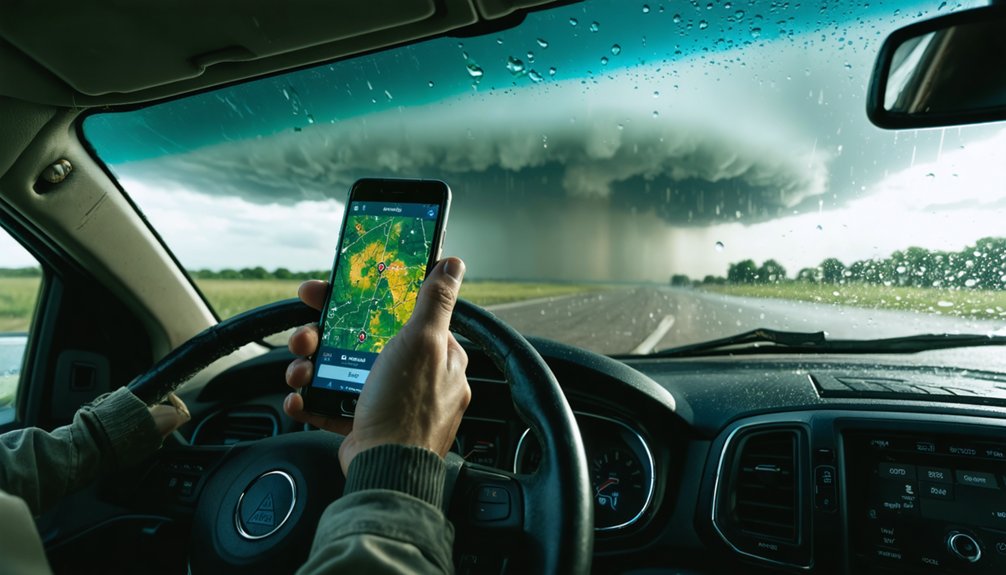
Accurate severe weather documentation through the Spotter Network requires adherence to specific criteria that guarantee National Weather Service operations receive actionable field intelligence. Real time report quality depends on your submission within 20 minutes of observation, ensuring forecasters can verify warnings and adjust predictions accordingly.
Formatting requirements mandate inclusion of:
- WHO: Your trained spotter status and identification
- WHAT: Specific phenomena (tornadoes, rotating wall clouds, any hail size, wind ≥50 mph, flooding ≥4 inches depth)
- WHEN: Event occurrence timestamp, not submission time
- WHERE: Precise location using recognizable landmarks or road intersections
You’ll maintain independence from secondary sources—firsthand observations only. Test reports, radar interpretations, and subjective assessments like “storm strengthening” aren’t acceptable. Submit quantifiable damage descriptions with direct storm attribution for valid documentation.
Viewing Other Spotters and Real-Time Storm Data
How does situational awareness transform when you access real-time positioning data from active spotters across your target area? The Spotter Location app delivers GPS-verified positions of field personnel who’ve updated within the last five minutes, distinguishing active vs historical spotter locations through automated filtering. Your mobile device operations require “Allow all the time” location permissions with precise positioning enabled, plus unrestricted battery settings for continuous two-minute beacon updates.
The integrated map displays concurrent storm reports overlaid with spotter coordinates, providing ground truth data accessibility for coordination decisions. Your position transmits automatically to Spotter Network’s API while excluding your own location from your map view. This bidirectional data exchange supports external app integration, including RadarScope compatibility, enabling multi-platform situational awareness during dynamic chase operations without centralized command infrastructure constraints.
Training Requirements Before Using the App in the Field
Before deploying the Spotter Network app during active weather operations, you must complete formal training protocols that distinguish legitimate field observers from unvetted participants. Training prerequisites differ substantially between organizations—SKYWARN certification requires only attendance at their two-hour sessions, while Spotter Network demands actual test passage for report submission privileges.
Your certification requirements include:
- Complete online courses through the new training portal, featuring modules recalibrated specifically for storm spotters from first responder curriculum
- Pass mandatory examination administered by Spotter Network (unlike SKYWARN’s attendance-only policy)
- Master severe weather identification covering thunderstorm structure, tornado recognition, and cloud feature differentiation
- Access supplemental resources including the NWS field guide and meteorological radar software for enhanced situational awareness
You’ll gain unrestricted reporting capabilities once you’ve satisfied these competency benchmarks.
Frequently Asked Questions
How Often Does the App Update My Location to Spotter Network?
Your location update frequency defaults to 60 seconds with premium membership, while basic tier intervals aren’t documented. You’ll maintain location visibility duration through continuous background transmission. Android versions allow custom intervals starting at 2 seconds minimum for maximum tracking control.
Can I Control Who Sees My Contact Information on the Network?
While you’d expect granular privacy settings, you can’t selectively hide contact information from fellow spotters. Premium members access “Go Invisible” for location sharing restrictions, but complete contact privacy requires account termination—limiting your operational freedom considerably.
What’s the Difference Between Application ID and Spotter ID?
Your Spotter ID identifies your account settings and profile, while your Application ID enables real-time location sharing through third-party apps. You’ll enter the Application ID into external tracking tools; your Spotter ID connects official SN apps to your registration data.
Does the App Work on Both Android and Ios Devices?
Yes, you’ll find native apps for both iOS (12.0+) and Android (6.0+). Each platform requires identical location settings and cellular connectivity configurations, though Android demands additional battery optimization adjustments for unrestricted background operation.
How Long Does My Location Remain Visible on the Map?
Your location visibility duration persists for five minutes on standard feed after your last update. Location update frequency occurs every two minutes for standard members, while premium members achieve sixty-second intervals for enhanced real-time positioning accuracy.